
Lounge Chair (free scene for Octane Render)
I’d like to share simple test scene for Octane Render that I’ve been playing around in a while trying to get a grip with this GPU engine.
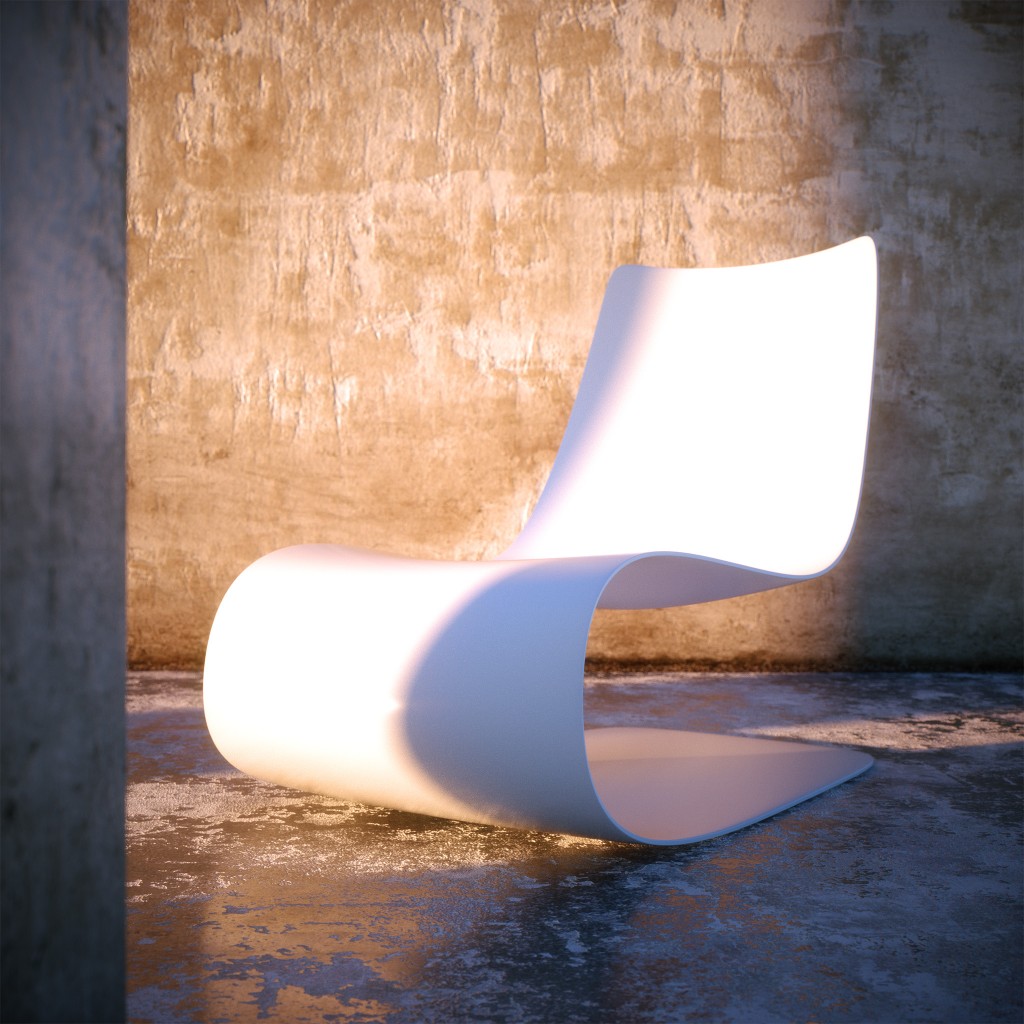
Who is it for?
Well for everyone who is interested – it’s free. Keep in mind that if You want to get most of it, the result it was made for, You need full activated copy of Octane Render as output resolution of demo version is limited.
Objectives
Get as fast as possible noise/fireflies-free image with least amount of side effects (loss of details), without spending additional time or using other software for cleanup. With output quality being a top priority DL kernel was dismissed as being a fake solution – good for cutting time, but..in my personal opinion – too limiting. In this situation You can end up getting similar result, but this scene is meant to be more flexible & reusable, that’s why PT (path tracing algorithm) was used as a render kernel.
Problem(s)
As expected in progress I’ve got quite some noise & fireflies out from the situation, with strong direct light + glossy objects. One way to solve these issues was simply to leave the scene rendering for longer..
I was looking to output resolutions for website use, however having more pixels never hurts, but again..who wants to render longer? (If You step from 1k to 2k square – You get four times more of pixel count & thus You need four times longer to render image clear of noise if You compare 100% crops).
I’ve tried a lot of different ways to approach this, but I came to the conclusion that if You do any kind of de-noise/de-specle in post with filter on top of fastly done low-res output, You could end up loosing some details that otherwise You might want to keep.
After some time spent going through & tweaking parameters I’ve came to some I haven’t played too much before: filtersize in kernel & hotpixel_removal inside imager. Why? Well because while using lower-res these tend to blur Your image, without adding too much positive effects, while negatives would be hard to ignore. OK, then I thought why not to bump output resolution to 4k (or even 8k) square?
Downside of having such resolution (when You don’t actually need it) is that Film buffer eats quite a bit of vRAM in Your GPU. Let’s say while rendering 1k (square) You reserve about 34MB, 2k – 136MB, 4k – 544MB & 8k – 2.1GB.. So if You have like 1GB card..this might not work for You.
Plus, let’s face it, if You’re looking for higher-res output, using low-res textures it isn’t the best idea too (especially if You end up seeing only part of it almost full screen like in this scene). Bigger the texture..You gessed it right – more of vram it will use. I’m not sure who was the first came up to this way of calculation in the forums, but if You want to get how much of vRAM the texture is going to take after being uploaded try this way.
Let’s say You have 4000×4000 texture size. If You upload this as an image then take 4 x 4 (dims in thousands) and multiply by 3.85. If You use as texture as float image (b&w version for adding bump or specural, reflectivity, etc) You should take half of what we calculated before, so simply divide by two. Actually have no idea where from they came with this ratio, but it’s pretty close. Keep this in mind calculating how much space You have in Your disposal.
For the record developers noted that to render 26 million triangles you need around 4GB of VRAM.
Other things, if Your screen is attached directly to GPU ~300MB might be allocated for it.
Solution
Owning a card with at least 3-4GB (or 6GB) will give You a possibility to play a bit at higher resolutions, housing some bigger textures or even dropping more complex models (that was the reason why I switched from two 460 to 670 – speed wise performance is almost the same, but You get four times more of space in vram to play with).
You can lower output, but this move would defeat the purpose of this test scene (how to get something out of the engine, fast & noiseless or at least with unified noise that might be acceptable if You decide downscaling the image).
Mentioned technique is not new. Old developers (founders) of Octane Render posted some tips around the time when one of the competitions was having a place in their forum. And basic idea is quite simple..You can render higher resolution, leaving more noise, & then downscale the image. Because of scaling – noise will be less visible – logical. If You decide to use any denoising procedure, You can do that before scaling down in this case there would be less unwanted side effects that I’ve mentioned previously.
You don’t need any other de-noise filters or external programs as OctaneRender already has several inbuilt options that You could use to get rid of noise & fireflies. Once You have higher resolutions, loosing a bit of sharpness is not so much of a downside if You manage to keep things under control.
Consider the fact that after all computer generated images usually tend to look artificial because of unnatural sharpness (if they have good lighting, quality models, etc. in the first place). For some reason majority of artist prefer sharp & perfectly crisp output. However in real world cameras have some level of noise, do blur some details & if You use particular camera settings, probably already get some defocus blur. So while trying to get rid some issues & cut render times, adding a bit of extra blur in the mix doesn’t seem that big of a deal.
Scene’s structure
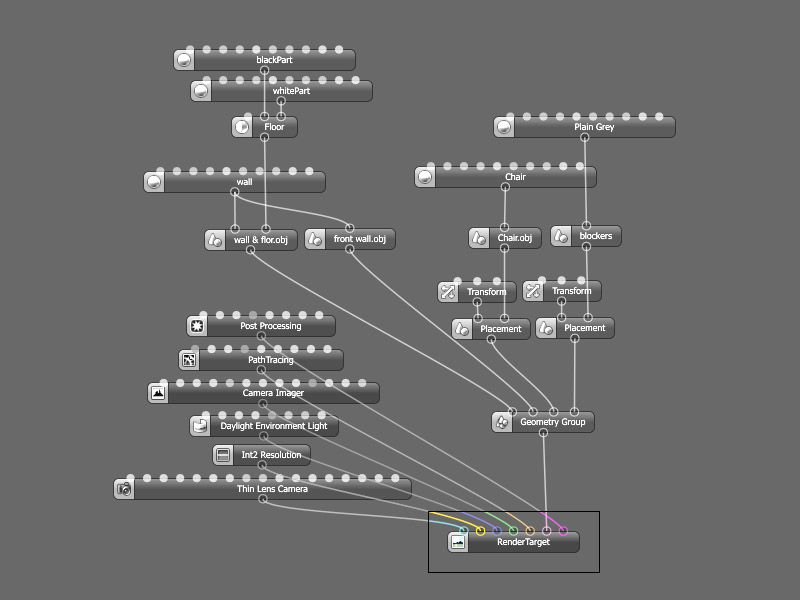
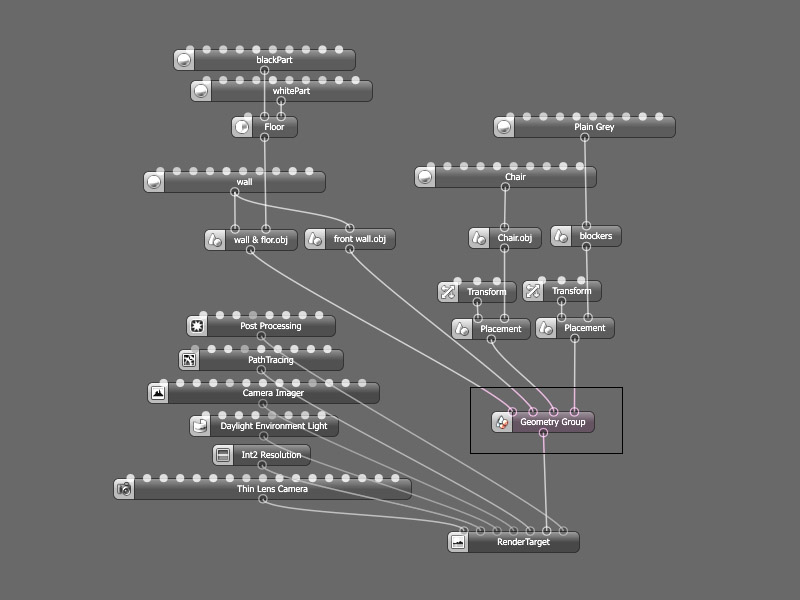
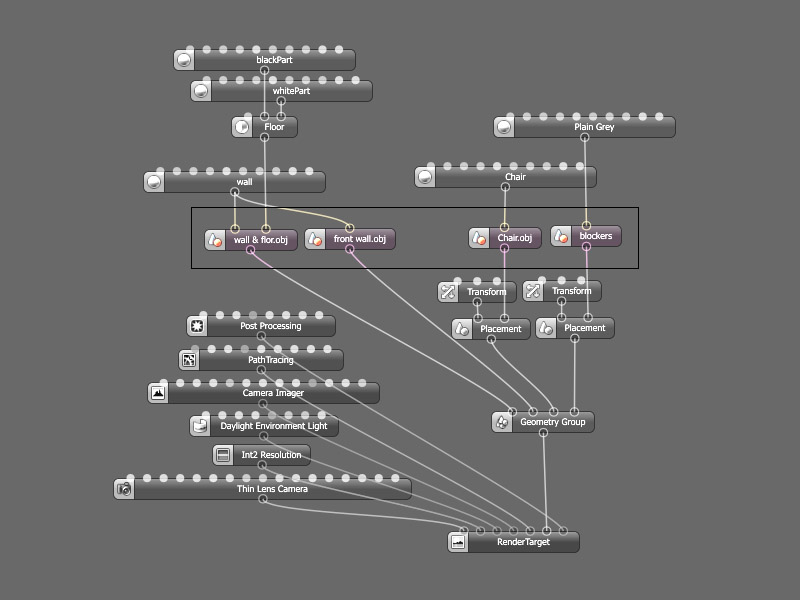
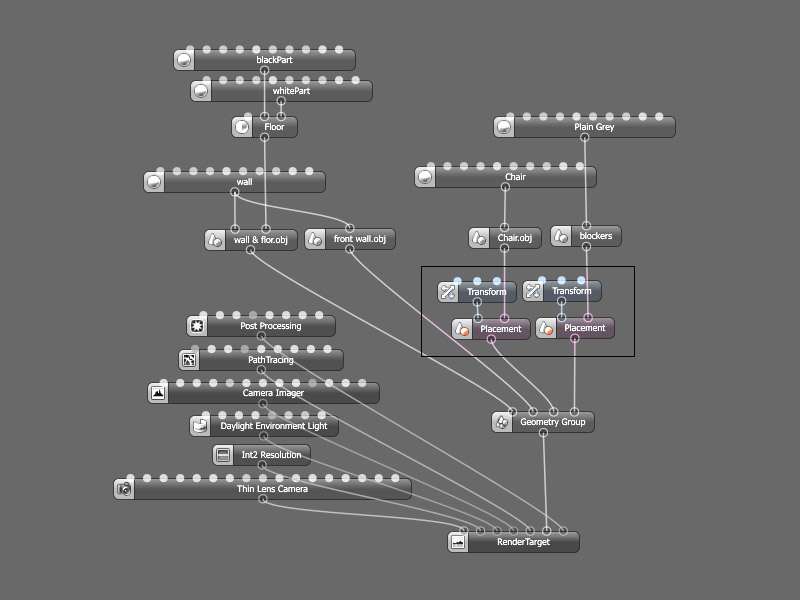
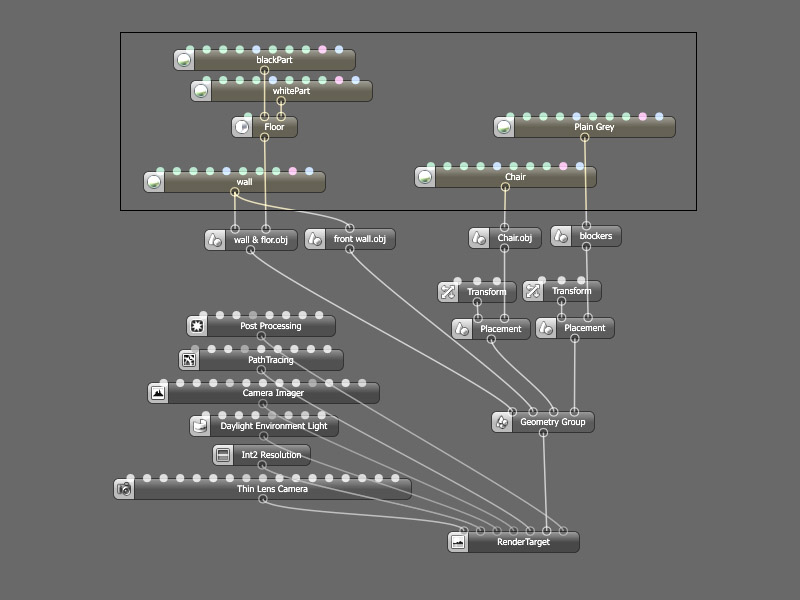
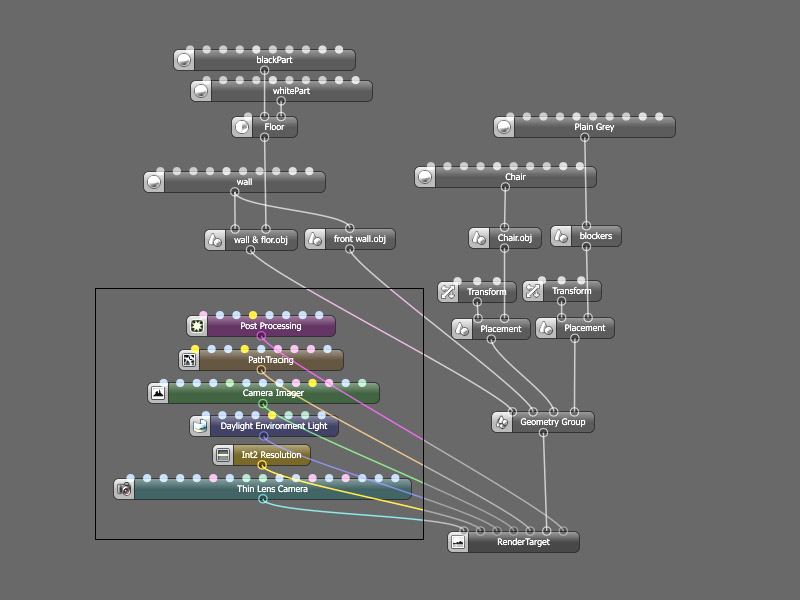
As You see this scene is pretty simple: wall & floor as a background, chair as an object to focus, something in front to help framing and, as I call, few light blockers to shape the falling light. Each of the mentioned elements are imported as separate .obj file, so they could be turned off, replaced or moved with the help of placement node inside Octane Render without the need of re-exporting whole geometry out from Your modeling package. Incase You have heavy models (trees, cars or other dense meshes) re-exporting might take quite a while.
There are two sets of textures (diffuse, specular & bump) for wall and floor. I reuse scaled and rotated maps blended with originals to give extra details for the floor without painting out more maps (or pushing texture resolution even higher) & thus saving some time while preparing the scene.
All materials are specular as in nature every material has a bit of reflectivity. Chair is left untextured, though it was UVed in case I would like to play with it later. I also advise You to change not only textures, but models too. At the end that’s why I made these scenes for myself – to have a library of usable scenarios where I could easily drop models & with minor adjustments get fast output.
Things to know if You download
This free scene is shared as is, meaning You need a basic understanding of how Octane Render works. I do advise reading manual provided with installation (if You haven’t already done so) or looking through helpful OTOY forums as You probably going to find Your question already answered.
Disclaimer & legal notice
You are free to do whatever You want with the scene with exception of selling it. Don’t use it in production before testing it out (I’m not responsible for anything if You decide to use it for something else rather than learning). This is an asset to pressent techniques & getting a grip with Octane Render. In the end oppinion provided is based on personal experience and needs. So don’t take that as a rule.
Version of Octane Render
Scene is made in version 1.2 as by the time of posting that is the last stable official release. I’m thinking of modifying, tweaking & optimising the scene (if needed) for upcoming versions & maybe even adding some extras if I see any interest.
Download Scene & additional files
* Short video I came to produce while testing systems stability under load. You can read more about Daylight (and TurnTable) Animation in Octane Render(Comming soon)
P.S. If You wish other similar topics to be covered, please feel free to drop me a line.