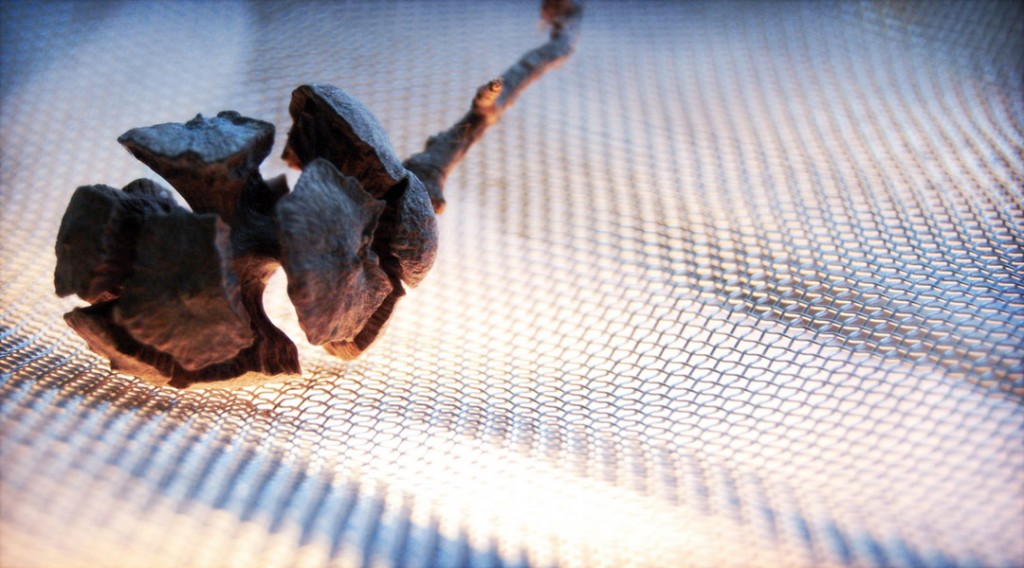
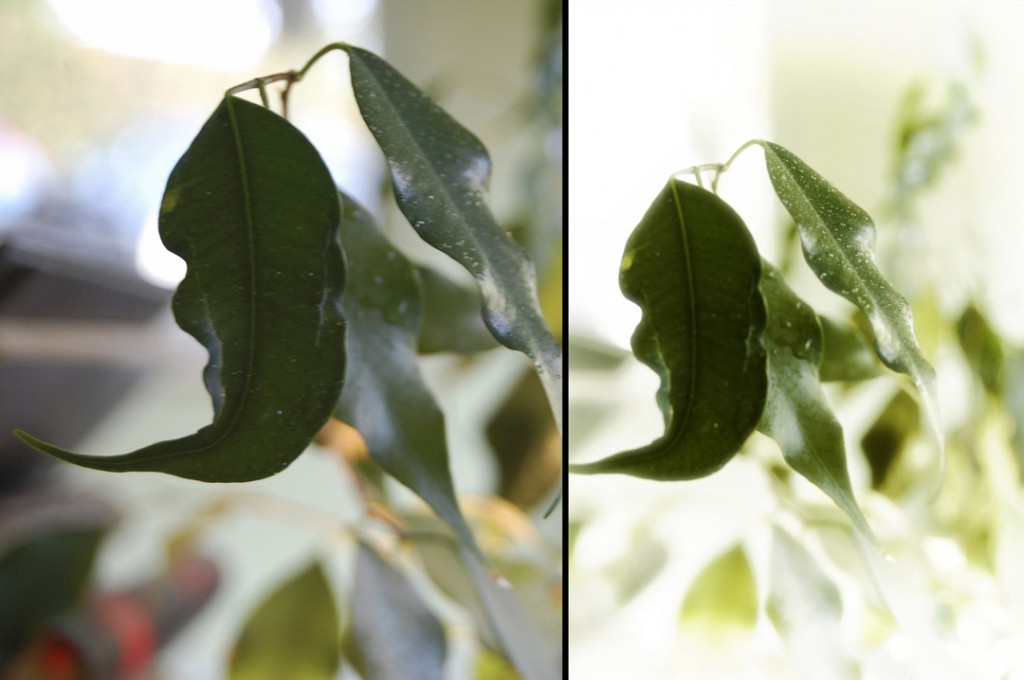
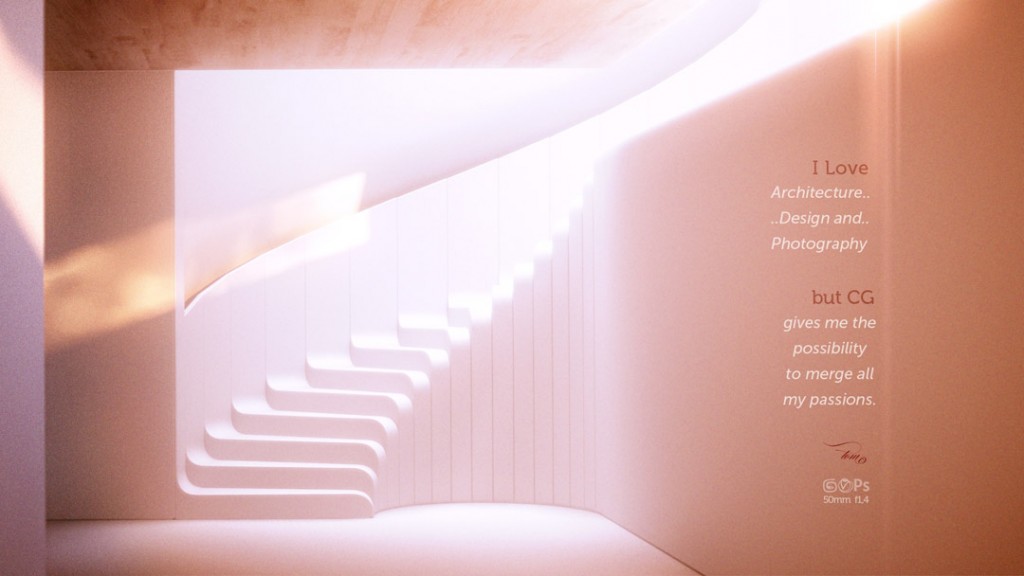
Color rich image

To spark an interest I’ve gathered a mood-board on Pinterest – Blue & Yellow

Let’s talk a bit in a different way, through a prism of physics, rather than color theories (wheels, triangles, opposite or matching colors, etc.).

What is light?

Visible light, for human eye, is just a portion of electromagnetic spectrum, wavelengths that range approximately from 400 to 700 nanometers.


If You take a look at all of this range at once, You would observe neutral light (or white light as we used to call it). If You start spliting and/or blocking certain parts of that spectrum other colors would appear.

What is Color?

We see objects being colored in a certain way because they reflect just a certain part of that visible spectrum and our eyes pick that (for instance sky is blue, because atmosphere scatter shorter wavelenghts of visible spectrum and this portion reaches our eyes). White surface reflect most of it, while black seem to absorb all waveleghts very good – let’s say that is enough for the basic theory (as in reality it gets more complicated the deeper You dive). That serves as a reminder: everything we see around is light (including color properties) and all we record on a photograph, digital or artificial image (visualisation) is light.

In my opinion, light simulation, distribution and rendition are the most important parts that form the mood of any image.


Color rich image for me is one that keeps as wide lighting spectrum as possible but still manages to look natural (You can always go crazy with light, but just because You can, doesn’t mean that You should).

In nature You can observe natural phenomena with properties that especially landscape photographers fell in love with. Golden Hour is one of those moments – early morning/late evening, when the sun is almost touching the horizon, sun light looses it’s intensity and it’s light gets on the warmer side (because of scattering & absorbtion going on in the atmosphere).

After the sun goes down – dusk comes. You can get just enough bluish tinted natural light and mix with more warm artificial lighting (if You took a glimpse into the mood-board – this is the main scenario).

In the end it really doesn’t matter what theory You choose (as long as it works for You – use it!). For me a bit more physical approach works good enough not to mess with color theories and good portion of reference always helps.

We always look back to nature for the most beautiful things in life – that’s why I love physics as it simply tries to explain how things work.


So, what’s next?

I’m looking to make an intro (inside Octane Render StandAlone) on how to set the white balance, choose and tweak lights to get desired look – not only realistic, but also pleasant for observer. See You soon!

P.S. If You wish other similar topics to be covered, please feel free to drop me a line.

Back to the main page

Batch rendering in Octane

There are always some things, that are hidden from first glimpse & sometimes even looking closer doesn’t reveal too much either.

If You have multiple shots to render, constantly checking if one is done to be able save the result & start next render, this will be useful for You. Consider this while You will be doing material, lighting or other tests too. Rather than sitting & looking to noise fading away You can set up the scene, leave it to render multiple shots & go for a break or do other work without any interruptions. When You are going to come back all the work will be done, multiple pictures will be saved for You without any need to wait one by one till they are done.

Batch rendering isn’t a new concept at all. Some programs have inbuilt functionality, some have external plugins that help to deal with this task. In Octane Render You will not find any button or function in the interface (just yet), leaving You to dream if such function exists at all & let’s face the fact not all of us like reading manuals or going through every single topic in forums (as that takes quite some time). So how to do that?

Actually there isn’t one but two different ways of making that happen. Let’s take a look at both of them.

Batch rendering using command line options

That’s the way I used to do this. Octane manual’s chapter about command line reveals a lot of parameters that can be controlled.

You can get pretty flexible with the way You approach this, but it can get a bit complex. Personally I’m one of those who likes simplicity (not only in architecture, web design, etc). Especially when You haven’t got a trained eye to spot mistakes fast it’s always wise to keep code as short as possible, avoiding any errors or minimising customisation time while trying to reuse the code.

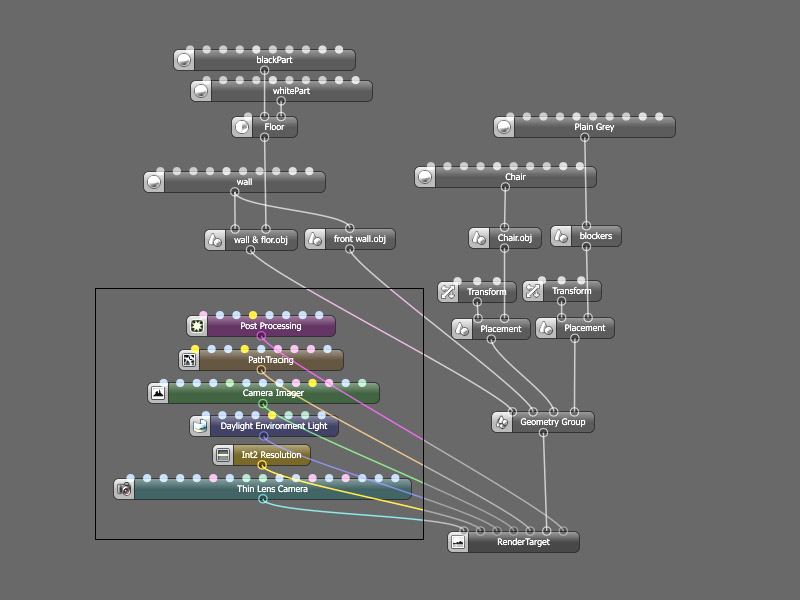
Working with render targets in Octane gives You a possibility to define every single aspect whether it’s lighting, camera, environment, geometry, render resolution, post processing, etc. In this way (if You have render targets ready) for automating the output (batch rendering) all You need to do is simply define scene, image format and directory. The code is pretty simple:

“C:\…\octane.exe” “C:\…\oo1.ocs” -q -t 1st -s 100 -o “C:\…\1st.png” -e

“C:\…\octane.exe”  path to Octane instalation folder;
 C:\…\oo1.ocs”  path to .ocs file for Octane;
-q  quiet mode, because of this You will not see Octanes window poping up (basicly saying to render in a background);
-t 1st  take render target named 1st;
-s 100  render it to 100 samples;
-o “C:\…\1st.png”  output rendered image to directory & name – 1st;
-e  exit the program.

That is the example to render one Render Target, & if You want to have multiple images simply duplicate the line, change the output name, render target, samples (or even add more arguments) and save it. I usually write the code as .bat file. When that is done, single click and it starts the batch process (opening program, importing file, rendering, saving out, exiting & again..).

So that’s one way of doing things. The way I still use up to this day. But there is another, new way.

Batch render with Lua scripting.

One of new additions to Octane Render (since version 1.5) was a scripting language named Lua. I don’t know too much about code – this is still something to learn for me (I’m more a guy that pushes buttons or at best presses a shortcut on the keyboard..honestly, anything more complex and I’m totally hopelessly lost).

OTOY’s programmers made a sub forum dedicated to this topic where You will be able to find useful things. Developers even talking about integrating script sharing possibilities into Octane Render itself in similar fashion as material librarary is. It remains to be seen how that works, but I have to say I’m looking forward to this.

Let’s take a look to what some users have already shared complimenting this theme. If You are licensed forum user then You should have an access to Lua scripting sub forum & among those threads there’s one about Bach Rendering. I’ll not add the script itself to download here, ‘cos You can always get the most recent version of it from those who have skills to tweak it to perfection. Unlike command line option this will have UI elements greatly simplifying the way You do things (no need to go & change the code anymore).

So let’s take a scene, give a spint for this script. In this case I have six render targets. Already have downloaded the script.

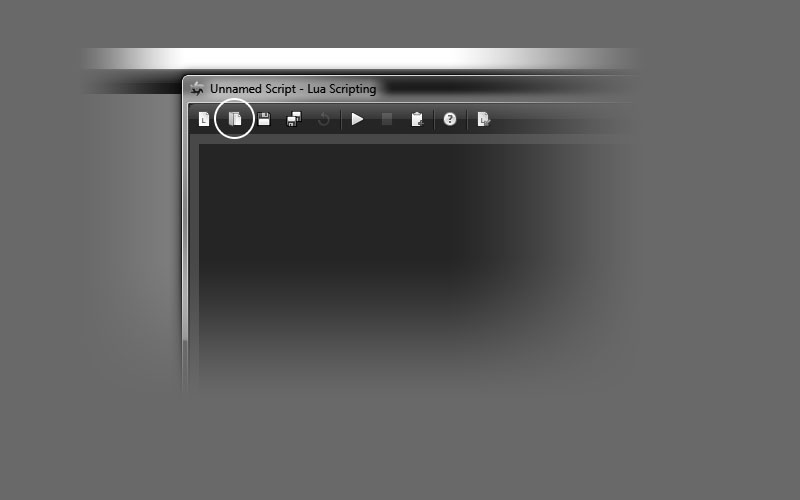
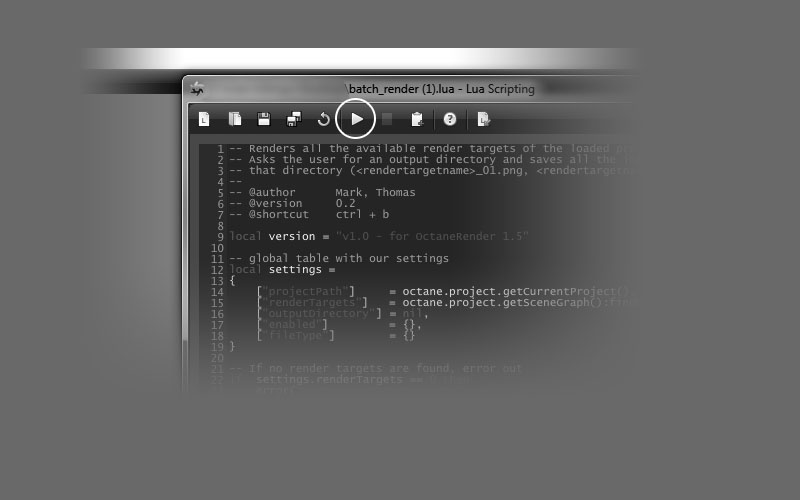
Let’s open Editor via Script menu. Second icon in the window (or CTRL+O) will open script from file, then simply by press Execute button (or CTRL+E). Table with more options will jumpt out. Select which render targets You want to be rendered & in what formats to be saved. Define the path for output & choose samples/pixel. Once You press Apply button indication bar will give You a feedback on the progress & when it’s finished all the pictures are going to be found in provided directory.


I think using this script is way more enjoying than tweaking parameters for the command line everytime You create new render target or save file in different name & I’m looking forward to use this new way of dealing with Batch Rendering even more!

Thanks for OTOY’s forum users (Piotr a.k.a. Rosol, MB & also developer Thomas a.k.a. Stratified) who wrote, tweaked  & shared this useful scipt.


Back to the Home Page

Nvidia’s TitanZ for GPU rendering (through the eyes of Octane Render user)

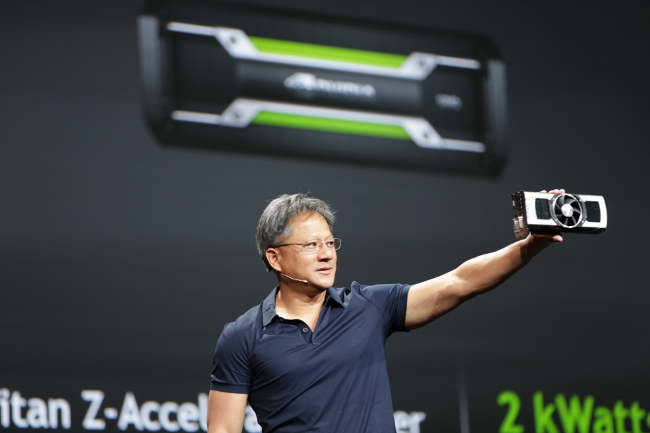
Among other news in GTC’14 new card released by Nvidia – TitanZ is up in the air in the hands of Jen-Hsun (co-founder,  president and CEO of Nvidia).

nvidias_Titan_Z_GTC_2014


I can’t help myself just appreciate the sheer beauty of it. Check this video official Titan Z anouncement video. Also You can take a look to full presentation in GTC ’14 via Nvidias You tube channel & here is the part dedicated to Titan Z.

I wasn’t looking the event as it was streaming, but when I sat to my PC after a while & saw the card with 12Gb of vRAM.. have to admit that the first mind crossed my head that moment was: I want one!

Is it useful for rendering (with Octane in my case)?

After I started to reading a bit more (as the video wasn’t available at that moment) I’ve found some details that honestly I was expecting (but clearly did not want to be true..)

First of all Titan Z is a dual-GPU card & that means it doesn’t have 12Gb of video memory, but rather two chunks of six. What does that mean for the user? Programs like Octane Render will only see 6Gb of vRAM, as scene files should fit into memory of both GPUs inside.

Second point is the fan. Axial design (already found almost the same on 690) might be beter in terms of noise compared to centrifugal blower, but it’s placement is far from being perfect (especially if You house multiple cards). Why? Well, unlike with centrifugal blower where all the hot air is going out from the back of the card this fan possition will split the air into two streams. One of them will go out of the case, when the other will stay inside. The card might sip it again & cooling will not be as efficient..-naturally temperaturess in card will be raised & this might even be causing GPU to throttle down. As a result decreased performance comes along.

Third reason is three slot design. From one point it is good: as the power of two, usually dual slot cards (read 4slots in total) You can fit into three slots, but.. how much of these You can fit into regular cases & typical motherboards? mITX stardart has one PCIe & cases usually only dual slot space. mATX will give You 4 slot spacing..- that is only enough for one such card. ATX (EATX) will have 8 expansion slot spacing thus only two cards.. – so.. Unless You use ribon cables, daugther boards, server backplanes, or modified cases – You’ll not be able to house more than 4GPUs – two of these cards into a normal case. So in the end this three slot design doesn’t give anything extra.

Last but not least – the price. Nearly 3k$ – for less performance (card is rated at 8 TFlops of FP32) than You can get out of Two Titan Black (2 x 5.1TFlops) cards…keeps me asking – why would You want to pay more (for less)? Just to save that one slot of space?

So, really, what’s the point?

I assume Titan Z migh draw less power, but we don’t actually know just yet how much. It will be interesting to calculate later how much performance You can get out of Titans Z compared to two Titan Black. Then to compare electricity bill after doing simillar work.

But still, I can’t stop thinking.. For 3K$ You can buy not two, but three Titan Black cards & that will have nearlly twice the performance 15.3 compared to only 8 TFlops from Titan Z – same money, twice the performance? Can You really ignore that?

Let’s look for more options. If You desperate for 6Gb cards, nVidia gave green light for 6Gb GTX 780 – & the best part is (if it’s true) it will come for 550Eu – same amount of vRam per GPU as Titan Z has, but for ~ 1/5th of that price..

Titan Z is definitely one of the most beautiful & at the same time very powerful card, but..as Octane Render user, I just don’t see it bringing any value or anything else on the table that You can’t get now from available parts. Personally I’d step & build a custom rig or expansion box with a loop of effective & silent water cooling. You can build entire system: 3x 780 6Gb, capable motherboard, CPU, RAM, SSD, PSU, case..even with custom water cooling. If You add a bit more funds four cards could be housed easily..

I see 12Gb being for marketing purposes only, as AMD not so long ago has released 8Gb card..- it’s a race, like the one we see in Photo equipment space with megapixels..there might be some cases where that split vRam might come handy, but for the sake of this article my field of vission is very narrow, seeing a card only in perspective of utilising all that power for raytracing. It would be hard to recommend it for anyone who is using Octane Render.

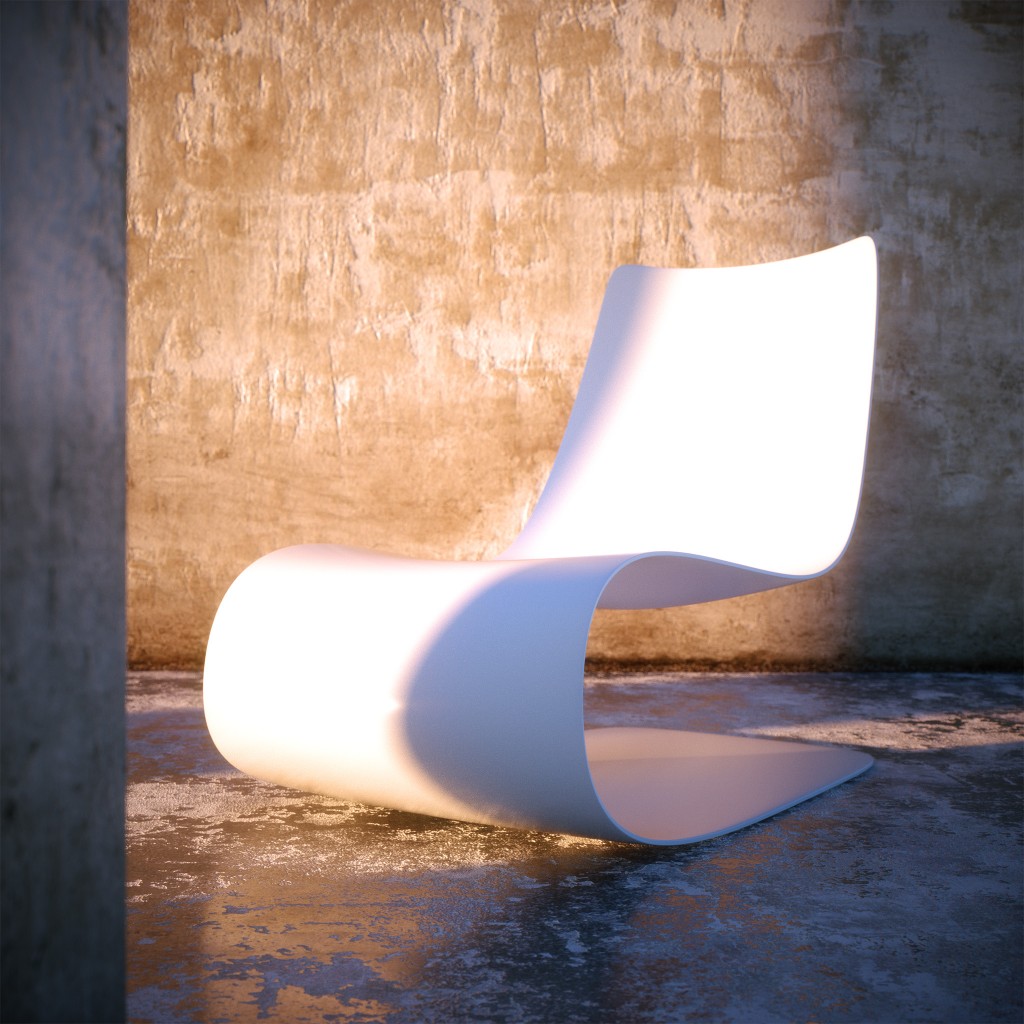
Lounge Chair (free scene for Octane Render)

I’d like to share simple test scene for Octane Render that I’ve been playing around in a while trying to get a grip with this GPU engine.

Who is it for?

Well for everyone who is interested – it’s free. Keep in mind that if You want to get most of it, the result it was made for, You need full activated copy of Octane Render as output resolution of demo version is limited.

Objectives

Get as fast as possible noise/fireflies-free image with least amount of side effects (loss of details), without spending additional time or using other software for cleanup. With output quality being a top priority DL kernel was dismissed as being a fake solution – good for cutting time, but..in my personal opinion – too limiting. In this situation You can end up getting similar result, but this scene is meant to be more flexible & reusable, that’s why PT (path tracing algorithm) was used as a render kernel.

Problem(s)

As expected in progress I’ve got quite some noise & fireflies out from the situation, with strong direct light + glossy objects. One way to solve these issues was simply to leave the scene rendering for longer..

I was looking to output resolutions for website use, however having more pixels never hurts, but again..who wants to render longer? (If You step from 1k to 2k square – You get four times more of pixel count & thus You need four times longer to render image clear of noise if You compare 100% crops).

I’ve tried a lot of different ways to approach this, but I came to the conclusion that if You do any kind of de-noise/de-specle in post with filter on top of fastly done low-res output, You could end up loosing some details that otherwise You might want to keep.

After some time spent going through & tweaking parameters I’ve came to some I haven’t played too much before: filtersize in kernel & hotpixel_removal inside imager. Why? Well because while using lower-res these tend to blur Your image, without adding too much positive effects, while negatives would be hard to ignore. OK, then I thought why not to bump output resolution to 4k (or even 8k) square?

Downside of having such resolution (when You don’t actually need it) is that Film buffer eats quite a bit of vRAM in Your GPU. Let’s say while rendering 1k (square) You reserve about 34MB, 2k – 136MB, 4k – 544MB & 8k – 2.1GB.. So if You have like 1GB card..this might not work for You.

Plus, let’s face it, if You’re looking for higher-res output, using low-res textures it isn’t the best idea too (especially if You end up seeing only part of it almost full screen like in this scene). Bigger the texture..You gessed it right – more of vram it will use. I’m not sure who was the first came up to this way of calculation in the forums, but if You want to get how much of vRAM the texture is going to take after being uploaded try this way.

Let’s say You have 4000×4000 texture size. If You upload this as an image then  take 4 x 4  (dims in thousands) and multiply by 3.85. If You use as texture as float image (b&w version for adding bump or specural, reflectivity, etc) You should take half of what we calculated before, so simply divide by two.  Actually have no idea where from they came with this ratio, but it’s pretty close.  Keep this in mind calculating how much space You have in Your disposal.

For the record developers noted that to render 26 million triangles you need around 4GB of VRAM.

Other things, if Your screen is attached directly to GPU ~300MB might be allocated for it.

Solution

Owning a card with at least 3-4GB (or 6GB) will give You a possibility to play a bit at higher resolutions, housing some bigger textures or even dropping more complex models (that was the reason why I switched from two 460 to 670 – speed wise performance is almost the same, but You get four times more of space in vram to play with).

You can lower output, but this move would defeat the purpose of this test scene (how to get something out of the engine, fast & noiseless or at least with unified noise that might be acceptable if You decide downscaling the image).

Mentioned technique is not new. Old developers (founders) of Octane Render posted some tips around the time when one of the competitions was having a place in their forum. And basic idea is quite simple..You can render higher resolution, leaving more noise, & then downscale the image. Because of scaling – noise will be less visible – logical. If You decide to use any denoising procedure, You can do that before scaling down in this case there would be less unwanted side effects that I’ve mentioned previously.

You don’t need any other de-noise filters or external programs as OctaneRender already has several inbuilt options that You could use to get rid of noise & fireflies. Once You have higher resolutions, loosing a bit of sharpness is not so much of a downside if You manage to keep things under control.

Consider the fact that after all computer generated images usually tend to look artificial because of unnatural sharpness (if they have good lighting, quality models, etc. in the first place). For some reason majority of artist prefer sharp & perfectly crisp output. However in real world cameras have some level of noise, do blur some details & if You use particular camera settings, probably already get some defocus blur. So while trying to get rid some issues & cut render times, adding a bit of extra blur in the mix doesn’t seem that big of a deal.

Scene’s structure

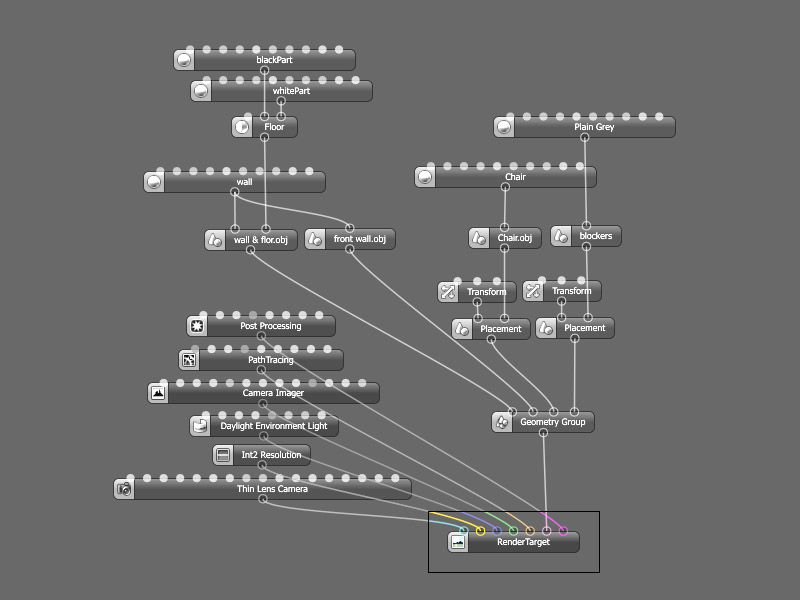
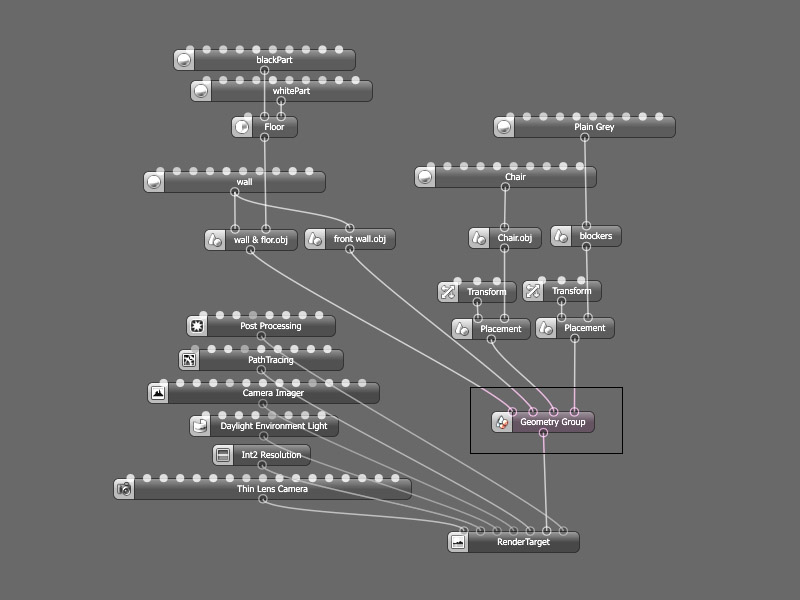
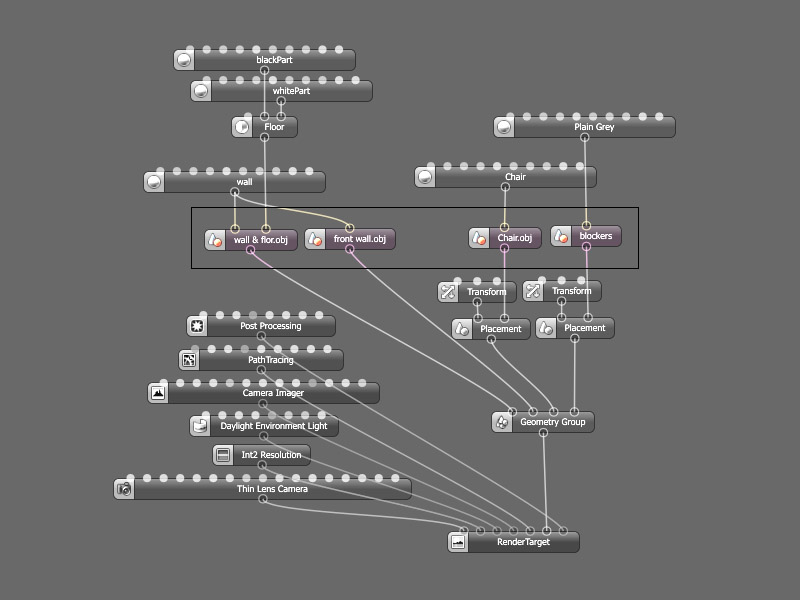
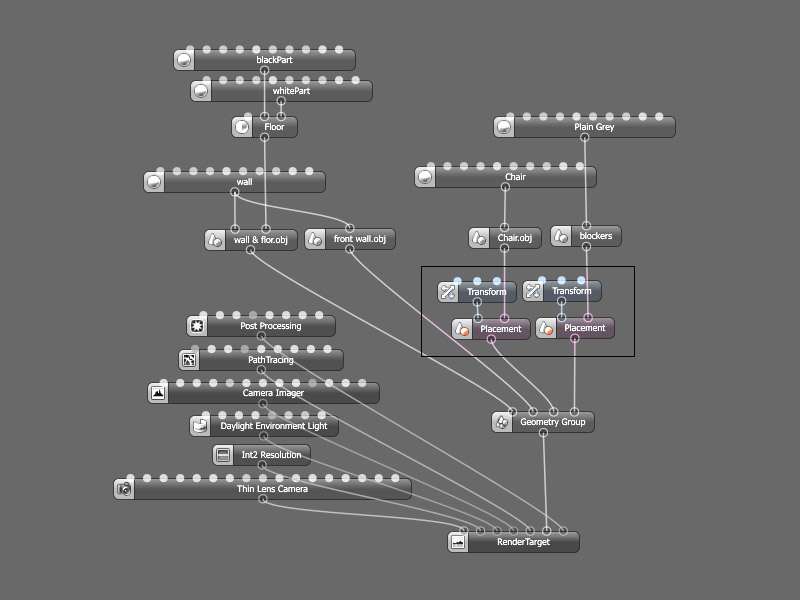
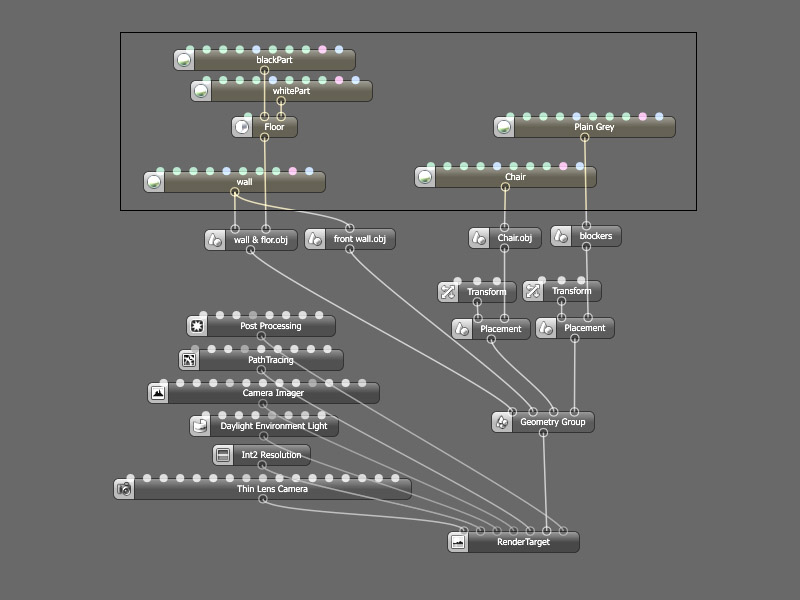
As You see this scene is pretty simple: wall & floor as a background, chair as an object to focus, something in front to help framing and, as I call, few light blockers to shape the falling light. Each of the mentioned elements are imported as separate .obj file, so they could be turned off, replaced or moved with the help of placement node inside Octane Render without the need of re-exporting whole geometry out from Your modeling package. Incase You have heavy models (trees, cars or other dense meshes) re-exporting might take quite a while.

There are two sets of textures (diffuse, specular & bump) for wall and floor. I reuse scaled and rotated maps blended with originals to give extra details for the floor without painting out more maps (or pushing texture resolution even higher) & thus saving some time while preparing the scene.

All materials are specular as in nature every material has a bit of reflectivity. Chair is left untextured, though it was UVed in case I would like to play with it later. I also advise You to change not only textures, but models too. At the end that’s why I made these scenes for myself – to have a library of usable scenarios where I could easily drop models & with minor adjustments get fast output.

Things to know if You download

This free scene is shared as is, meaning You need a basic understanding of how Octane Render works. I do advise reading manual provided with installation (if You haven’t already done so) or looking through helpful OTOY forums as You probably going to find Your question already answered.

Disclaimer & legal notice

You are free to do whatever You want with the scene with exception of selling it. Don’t use it in production before testing it out (I’m not responsible for anything if You decide to use it for something else rather than learning). This is an asset to pressent techniques & getting a grip with Octane Render. In the end oppinion provided is based on personal experience and needs. So don’t take that as a rule.

Version of Octane Render

Scene is made in version 1.2 as by the time of posting that is the last stable official release. I’m thinking of modifying, tweaking & optimising the scene (if needed) for upcoming versions & maybe even adding some extras if I see any interest.

Download Scene & additional files


* Short video I came to produce while testing systems stability under load. You can read more about Daylight (and TurnTable) Animation in Octane Render(Comming soon)

Back to the main page

P.S. If You wish other similar topics to be covered, please feel free to drop me a line.

Sculptural Stairs (wip oo1)


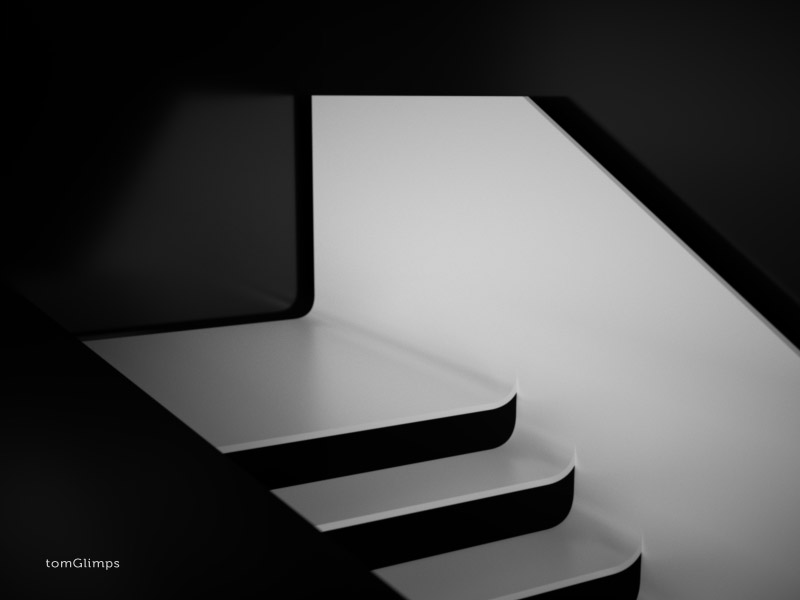
Here’s the very first step of my personal project called Sculptural Stairs that I’m looking to share along with work-in-progess scene files and some ideas how to get a grip on Octane Render.

I’ve included everything You need in order get images as those I’ve just posted.

Thought there might be some cases in the future when I will use some commercial textures/models and will not be able to share them, so I’ll provide files without and direct links where You could buy these if You want.

Download & Extract. Without too much of introduction..let’s look inside!


We have Octane’s file with .ocs extension, geometry/material information in .obj/.mtl files and six 16bit .png previews.

I provided simple mesh to play with. After initial stage of lighting I’m going to tweak this it on areas that are the most important for chosen camera views. It’s my prefered workflow, I see no need of putting details in whole scene when I need only particular shots. By working this way I manage to save computer resources like vRAM (lack of available space in it might become an issue very fast) and save some time that I could spend on lighting and cameras (in my eyes these two are the most important, most rewarding for me to work with too).

If You have no idea what You are doing, have never touched Octane Render before, but really want to try it, check out the article about How I Met And Fell In Love With Octane.

This series are not going to be typical how-to or step-by-step tutorials. Rather then brainless following, I encourage You to try playing on Your own, exploring provided material to gain a better understanding of inner workflows in Octane Render. This might not be perfect nor the only way, but.. that’s how I’m working and that’s what I’m going to share with You.

Learn-by-Playing! =) The aim here is not to do something perfectly or avoid mistakes, but to get as much as possible from this journey (that’s why I’m providing WIP files, rather than only final scene). If You have any experience with other render engines, that will certainly help You, but I strongly advise to read manual (this might save You some time later =)

While opening scene file Octane might ask You where is the .obj, but if You leave ocs/obj/mtl files in one folder it should not forget and probably would not bother You with pop-ups.

First thing You going to see after in opening .ocs file is the Node Graph.


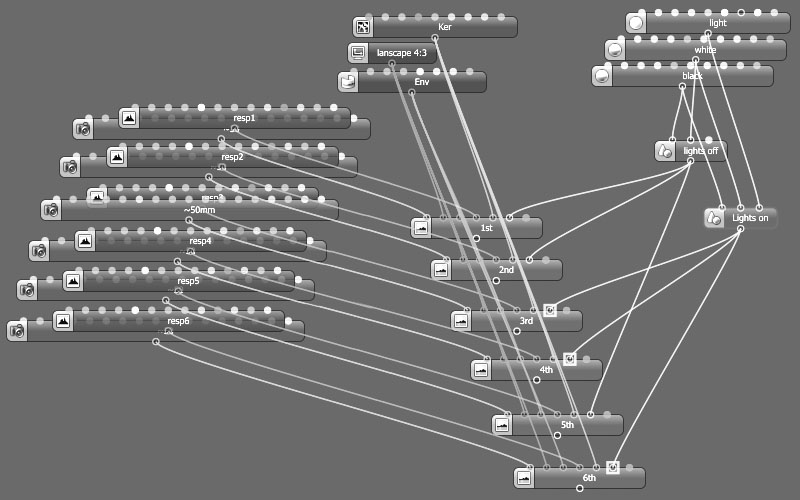
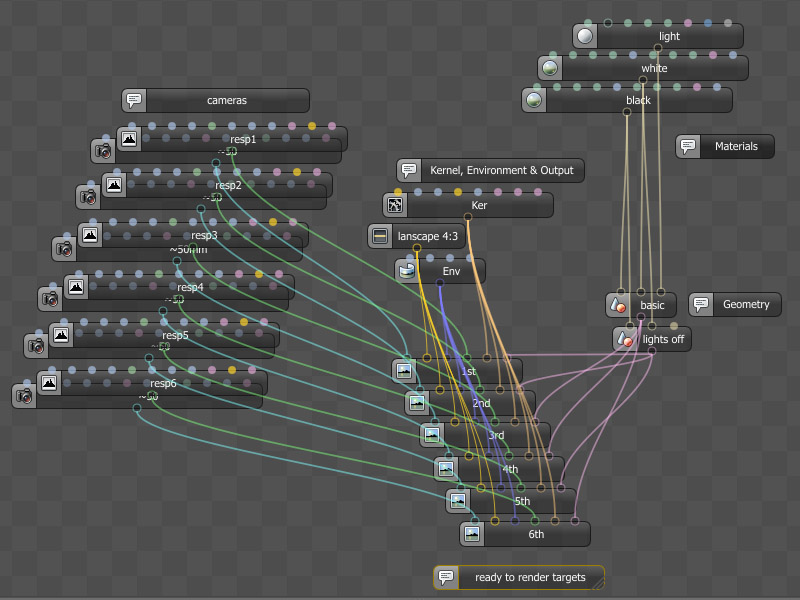
Let’s talk about it a bit. On the bottom part there are some of the most important nodes called Render Targets. These are like hubs where You connect everything (cameras, environment, meshes, output resolution etc). When You press on one of them rendering starts. In case of this file You have 6 angles already predefined. Each one will share the environment, output resolution (800×600), render kernel (Path Tracing), but have it’s own camera (28 0r 50mm) and imager nodes. On the right side there are two identical meshes. The only difference is that one mesh node doesn’t have light material connected while other does. Reason for doing this is so You could connect different objects nodes to your render targets and have interior with lights on  and off without having to switch them every time You change render target.

I’ve already mentioned that program is friendly enough and if You hover on any icon or conection on the node it will show what it is all about.


That’s it for now! Yeah, I’m leaving You here, so You could have more time playing around while I’m working on an update. Check once a while for news or follow me on twitter.

If You wish though, You can always tweak (add models inside, change geometry, etc.) this given .obj file on your own in Your prefered package, reExport modified mesh (as .obj) and use it in provided .ocs. All You need is simply to reImport/reLink geometry.


If You’re going to make something unique with the help of provided material, feel free to share Your images with few words about Your experience =)

Have any questions or c&c – fell free to drop a line.

tom

Back to HomePage.

c&c

Have any questions, ideas, comments or critics? Want to contact for a chat? – Feel free to drop a line!


Fastest way to reach me simply filling this form bellow

How I Met and Fell in Love With Octane Render.

Late 2010 I heard about new renderers, that somehow were able to render scenes faster, something like twenty times or even more! That seemed “a bit” out-of-a-dream..

I started searching for information online, but I haven’t found much back then, to be honest. One of the biggest projects that atracted my attention was Folding@Home. Though it wasn’t related to architectural or product visualisation, but it was one of those fields that took advantage using GPUs to calculate way faster and way more efficient than ever before.

While struggling to find some more information I accidentaly get into a website of a company called Refractive Software. These guys were making a GPU renderer. At that time it was in beta stage (and still is) but that didn’t stop users from posting really amazing stuff – some of these were rendered in minutes instead of hours (what I was used to see from typical CPU renderers).

After some time spent in their forums I’ve actually bought a licence of Octane Render and was very excited to try it. 99EU for something that could cut rendertimes so drastically sounds way better than You could ever think of. Pluss the fact that Octane is unbiased render engine was also very tempting.

Keep in mind that in order to use the program You need a graphics card that could run CUDA, here is a list of supported hardware , the faster is the card, faster render will clean out from noise (hardware is a topic on it’s own and I’ll probably write an entire article covering it).

With all the excitement I installed the package and tried playing around, but..it seemed that the first look, first try to get my hands on was frustrating to say at least.

Maybe the navigation, that I didn’t like; maybe the node-based editor or some weird acting sliders with cosmic amounts; maybe some other issues. My enthusiasm was actually brought down pretty fast, soon it was totally devastated and the idea of learning the program was thrown out of my head!


In the end of 2011 I had a chance to stay in London at the time when 3dsLondon event took a place in HD studio with Peter Giuthrie as a guest speaker. He was presenting his projects and among them beautiful set of nicely framed photographic renders for Strom Architects. Since then one thing kept spinning in my head, the fact he mentioned while he was talking about workflows:

I do all my renderings BruteForce in Vray. I also find that wherever I start messing around with irradiance maps and Light cache or other methods of rendering..all the sudden two days of testing dissapears and in that time I might be finished the job. – Peter Giuthrie

This kept me thinking a lot. Basically because I’ve seen a lot of artists around variuos forums that praise unbiased renderers or some were using Vray in brute-force mode instead of digging into other methods.

Brute-force
or using unbiased renderers were computationaly more expensive (need much more time to get clean, noise-free pictures out). On the other side You need less time to fine-tune Your engine. Idea behind unbiased renderer is simple – leave the render long enough and the noise will be gone, it’s probably the only ‘artifact’ but this way of working leaves more time for You to focus on the artistic aspects of Your work rather than tweaking the technical side.

While I was thinking about this in circles back then I remembered the engine I had tried before, but somehow couldn’t get into, the one that was left untouched for about a year then. “Is it really so hard to learn it? Let’s try, again”..- I’ve tried to convince myself..

So, I start playing around. This time everything seems little bit different. Maybe because of the fact that I’ve actually read the manual inside out few times, maybe because I’ve read their entire forum inside-out or maybe because I’ve added second GPU card into my system that actually improved it’s responsiveness..

Wanna look inside Octane?

There is a demo version with several limitations  if You prefer to try it for free (Render resolution output is locked to 1000×600 pixels; Project and render output cannot be saved; Online LiveDB material database functionality is not included).  I don’t use online material library, so material database is not so important to me, but saving images and being able to save files is the thing that matters, even if I’m just trying to learn something new, so I went for full version instead of demo.

I don’t believe the fact, that You can actually write everything on paper, in manuals. Maybe ‘rules’, but certainly not all ‘exceptions’ and those really matter on the long run. Just think how much time You can save, when program just doesn’t work as You expect and You have to figure a way around. Having a possibility to avoid those stressfull moments that has a tendency to appear on tight deadlines is a big deal in some cases.

Usually test builds might be a bit unstable, but they get some functionality earlier, so community could test that before official version would appear. When You get Your hands on those test builds, when You see the package in all those revisions with all the bug fixes, tweaks etc. then You get to know it much better.

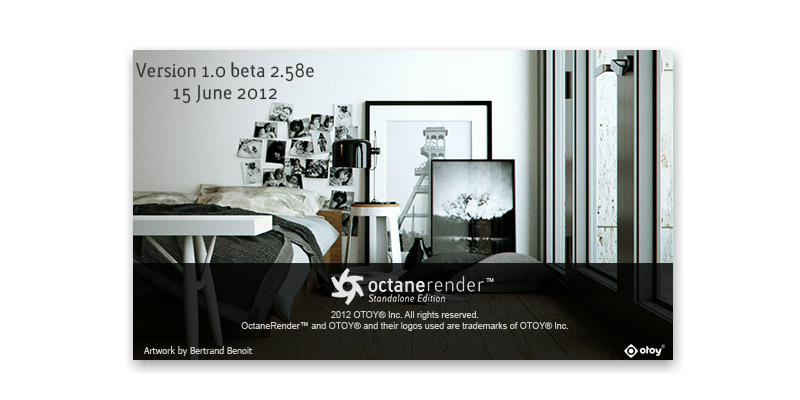
So, after You download the program, instalation is pretty straight-forward (next, next, next..) To start a program simple double click on it’s icon and here is the first nice surprise: something You might already been familiar appears on screen! An image from well known artist Bertrand Benoit project called Octane Corners


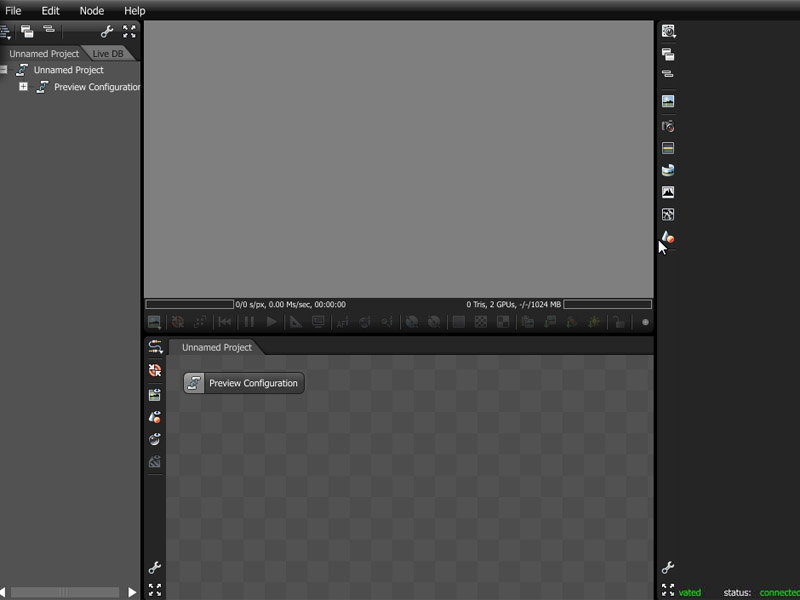
Few seconds after the program is loaded and ready to use.


It doesn’t seem to be so scary, isn’t it? The interface is divided into four areas . I’ll leave details for succeding articles, but here’s a rough idea of what You are looking at: on the left is Outliner (allows the user to view the current project in an outliner format), on the right Node Inspector (a place where You can tweak various parameters), two windows in the middle – the Render Viewport (where all the magic happens) and bellow is the node based Graph Editor.

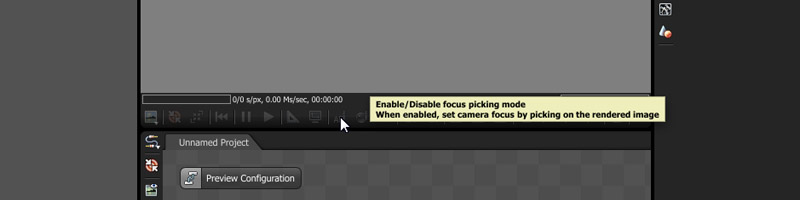
Program itself is pretty friendly as You can actually hover on any icon and the program will write next to Your cursor what the button is all about.


It doesn’t say too much, just a name of the function, though usually it’s more than enough if You have any experience working on other packages or don’t bother to google-up/read manual.

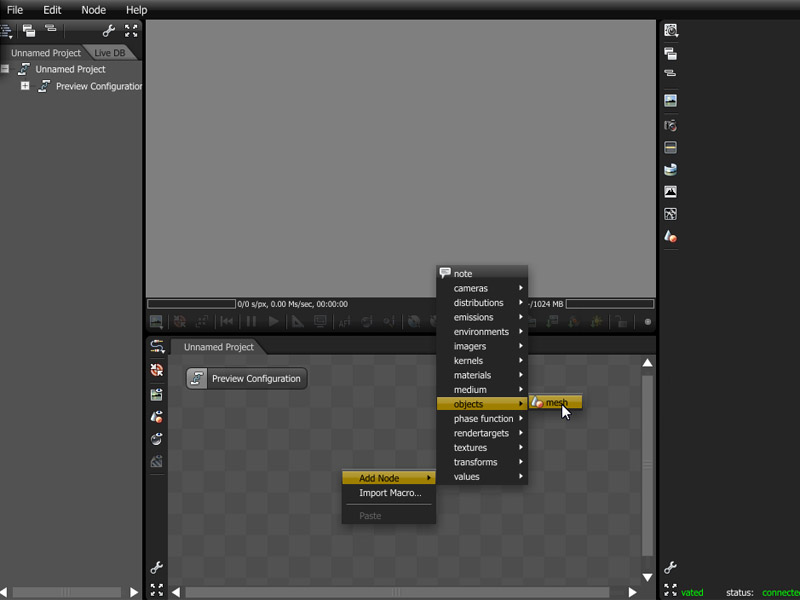
So what’s next?..there is a preview configuration already setuped for You. The only missing element is geometry. If You want to import a model, simply press right mouse button on node editor, choose add Node > Objects > mesh and import any .obj file.


Here it is – You actually started rendering your model!

You can tweak Your materials in the Node Editor or You can create a material node and connect it to model. The amount of ‘dots’ ontop of Your imported geometry node depends on the exact amount of different materials You have applied to your mesh before exporting. If You leave Your .obj model with one material – there’s no chance to use more later, unless You already unwrapped it and have several maps for masking.

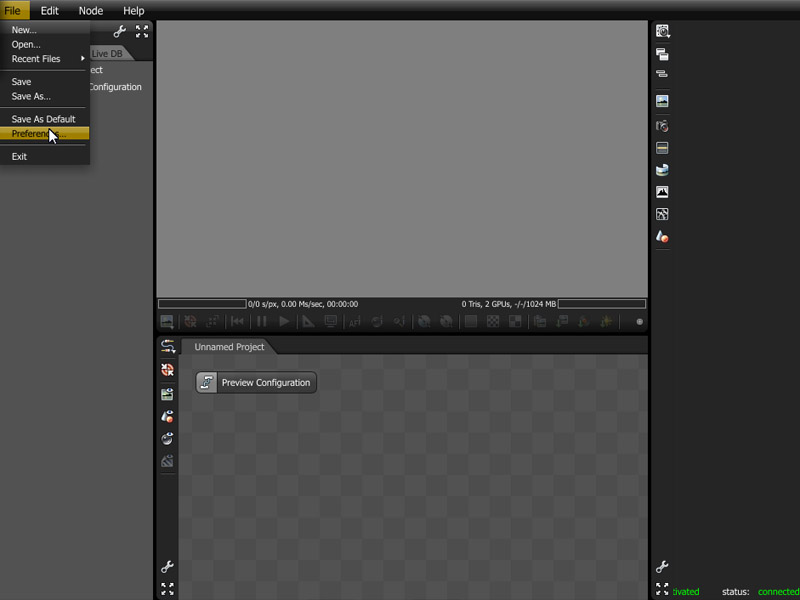
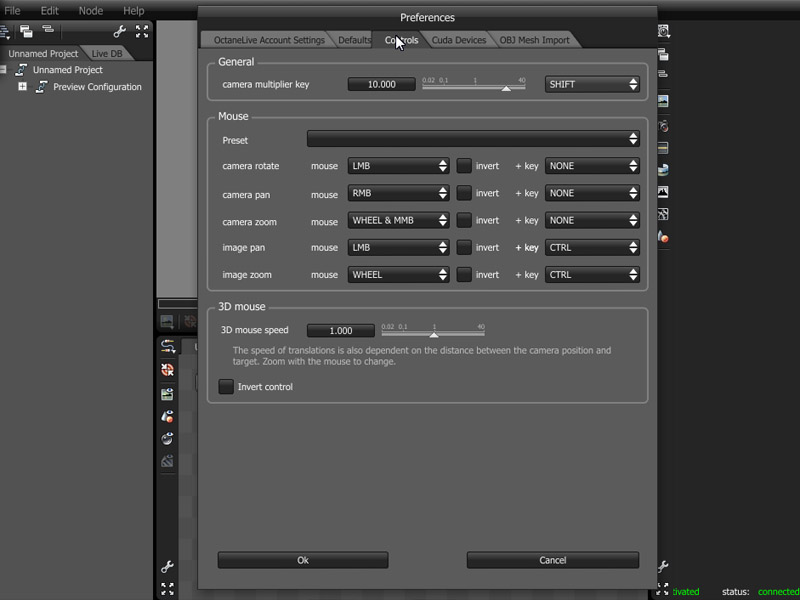
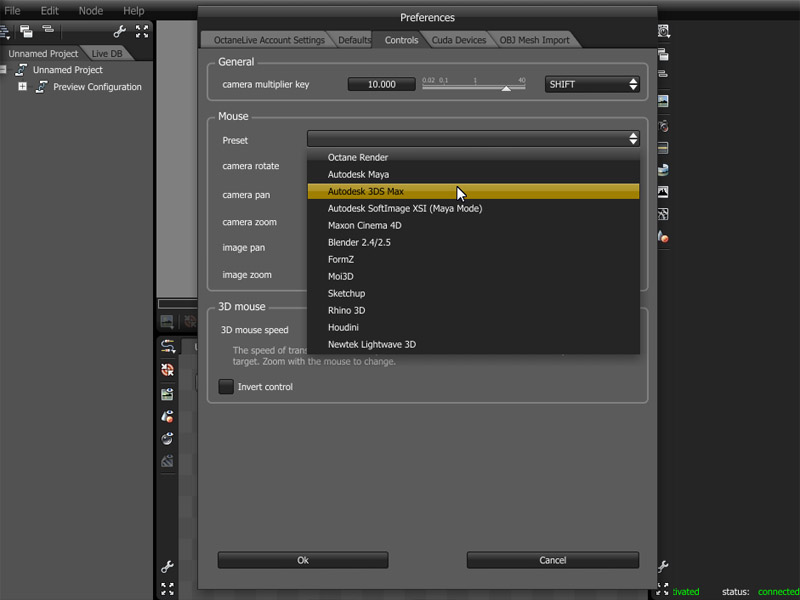
One thing to note is that You can actually change the way you navigate the scene.


Basic navigation might seem a bit awkward for some, but after some time You might actually get used to it and I would say it’s comfortable enough even if You use a tablet and stylus to navigate (what is not the very best way to manipulate 3d scenes anyway).

If You want to change something (lighting, materials, etc.) simply explore the possibilities in the Node Inspector and see the preview in realtime..

& don’t forget to have fun while playing around!


This is not the article to show of how to make stunning looking renders out of the box, I’ve just wanted to introduce Octane =) just as it is..for those who have never tried it before. Technical talking about different Kernels (rendering methods), how to organise Your scenes, how to work with cameras & imagers, etc. – will take some time to cover with hands on actual scene files (that I’m going to provide).

Stay tuned & feel free to follow me on twitter – that’s the fastest way to be informed about news pluss get some other related information. Feel free to drop a line bellow if there is something You want to ask or simply leave a comment.

tom

Back to  the HomePage

 

6Ws about tomGlimps


Who, What, Where, When, Why & How..these are the questions that form what is known as “5W and one H” or simply 6W’s. I’ll try answer those.

   Who is behind the tomGlimps.com

As You might guesed so far =) my name is tom & I’m a self-tought computer graphic artist focusing on Artificial Photography or simply Architectural Visualisation.

   Glimps..what?..

Actually Glimps is a simplified spelling of english word glimpse.

Glimpse [glimps] noun
1.a very brief, passing look, sight, or view.
2.a momentary or slight appearance..

Visualisation is nothing more than a very brief look of the idea in the head of an architect or designer.

We are constantly trying to sharpen up our skills in order to efficiently translate these ideas through visual outcome helping creatives to comunicate fluently with their clients. But it doesn’t matter how far we are going to push – it’s not going to be reality – it will always remain just “slight appearance”, reflection or “partial view”, only a glimps of an original idea.

   When did all this start?

While studying Engineer Architecture, I understood that this really wasn’t what I was expecting..piles of technical drawings, building regulations & calculations..

I was searching for something, probably myself =) questioning what I wanna do with my life & how to find something I could really enjoy doing?..I dropped the university..At that time I found some software used by architects. Started to learn, comparing one package to the other, always looking forward, reading everything I could find online..

This trigered a lot of different interests later as I got to understand that knowing software is not enough. Started experimenting with photography.


Then a bit with photoshop learning retouching & postprocesing techniques.


Somehow I even started learning webdesign. Found about project called wordpress (this site is using it too =). Later heard about typography, about what easy readability does, about fluid layouts and all the other things important to everchanging landscape of web..

..time goes & I’m still in persue of this dream..- I could not get architecture out of my head, photography still resonates =)


So, I keep digging deeper & deeper into CG. Now into GPU rendering..

   Why GPUs? Why now?

Have You ever heard about GPU revolution? It’s comming and it’s coming fast into our field too =) A while ago when I knew almost nothing about this topic I found an article from RenderStream. The same company a bit later showed us amazingly powerful render beast called VDACTr8 rendering scene almost in real time using Octane Render. I mentioned this software package not without a reason. As well-known companies are strugling to adapt and ‘translate’ their code into the language of GPUs (for CUDA capable devices) we see new companies getting into the field. Here and there You can find some news about amazing useage of this technology. Let’s take a look at what Bertrand Benoit recently showed us. His rendition of  “Octane Corners” took a second place in a open competition organiced by creators of Octane Render. While these are tests (an indeed very nice and highly pfofesional) some guys are actually using this software that is still in Beta stage not only for tests but for real production work. Here’s a simple product animation from Pure3d..etc.

   But how?..

The only way to to use the technological progress to Your advantage – slice render times & at the same time increasing output quality – is to learn how to use available tools properly and get in the boat early enough, before the process doesn’t come to be too complex or too widely used. But because there’s not so much info about this field the learning will be in hard ‘test & error’ way! Though early adopters can benefit gaining a competative edge.

Where to find answers? What software to use, what parts to buy for an upgrade?..- a lot of questions rise as you start playing around..knowing the limitation of technology might help as well not to stuck with Your project.

I’ll get into various technical details in the future articles as this is the theme that drives me crazy in these days =) that’s one of those reasons why I’ve created this site and I’m eager to try a lot of stuff & share it with You soon.

   Where is tomGlimps?

If You got interested in some of the ideas expressed here – feel free to follow me on twitter  & I’ll inform You when something new will appear or simply once a while check this website =) I’m sure that You’re going to find here something usefull in the future =)


Back to the HomePage